Installing the GitHub App
To scan repositories with GitHub App authentication, install the RISKEN GitHub App on the target GitHub Organization or User account and grant access to the repositories to scan.
Complete the GitHub App installation and repository access configuration before creating the GitHub setting in RISKEN.
For the steps in RISKEN after installation, see Configuring scans with the GitHub App.
Installation URL
Use the following URL to install the RISKEN Code GitHub App.
https://github.com/apps/risken-code-app/installations/select_target
Who should install it
For GitHub Organizations, the Organization owner should install the GitHub App.
For personal repositories, the GitHub User should install the GitHub App on their own account.
Installation steps
-
Sign in to GitHub.
If you are installing the app on an Organization, sign in as a user with Organization owner permissions.
-
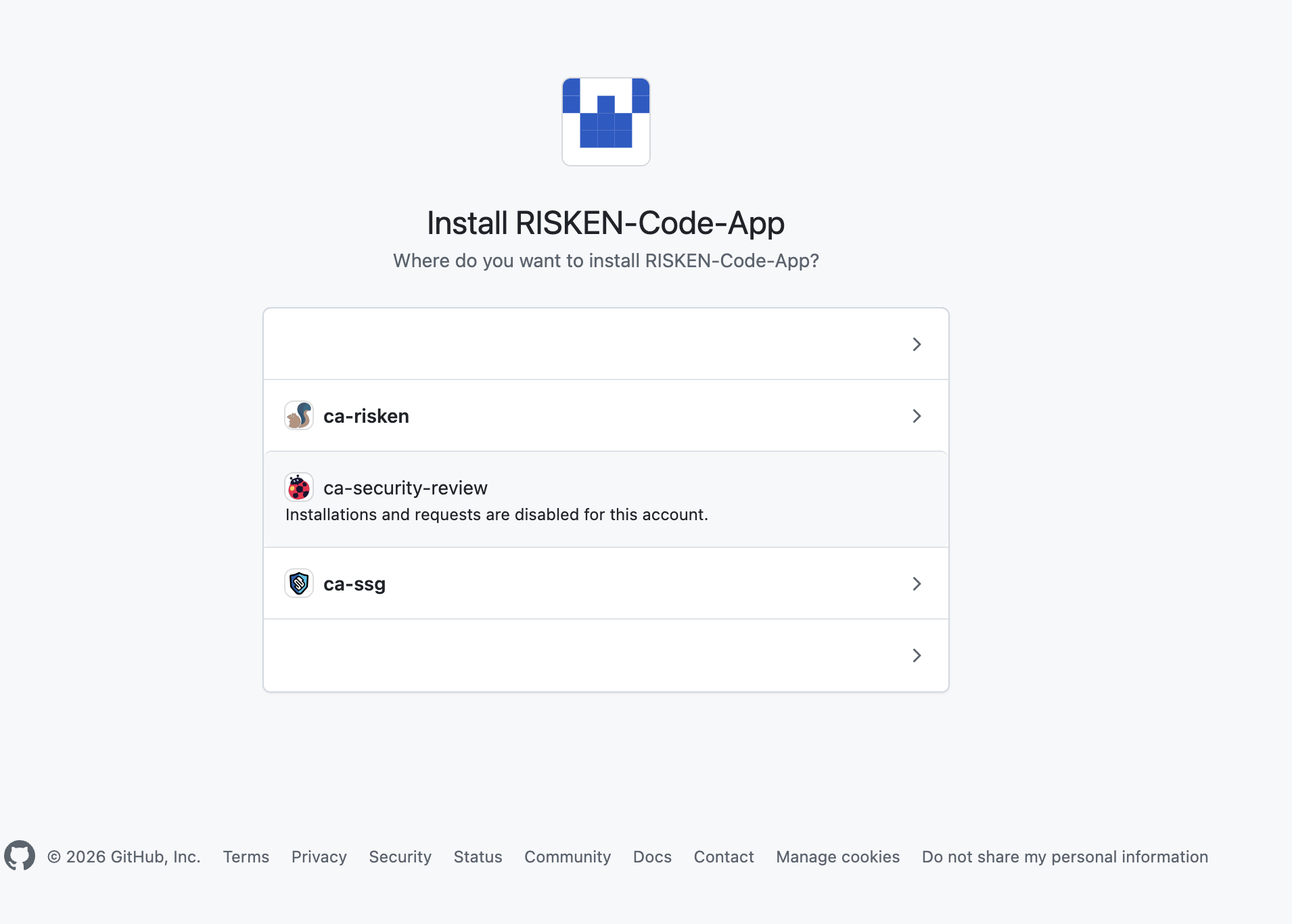
Open the installation URL, then select the Organization or User account to install the app on.
Select the same Organization or User that you will set as
TargetResourcein the RISKEN GitHub setting.On the next screen, confirm that the target Organization or User is displayed at the top as the installation target.
-
Select Repository access.
Select
Only select repositoriesto grant access only to specific repositories.Select
All repositoriesto grant access to all repositories under the Organization.Note
If you select
All repositories, repositories created in the future will also be accessible by the GitHub App. SelectOnly select repositoriesif you want to operate with least privilege.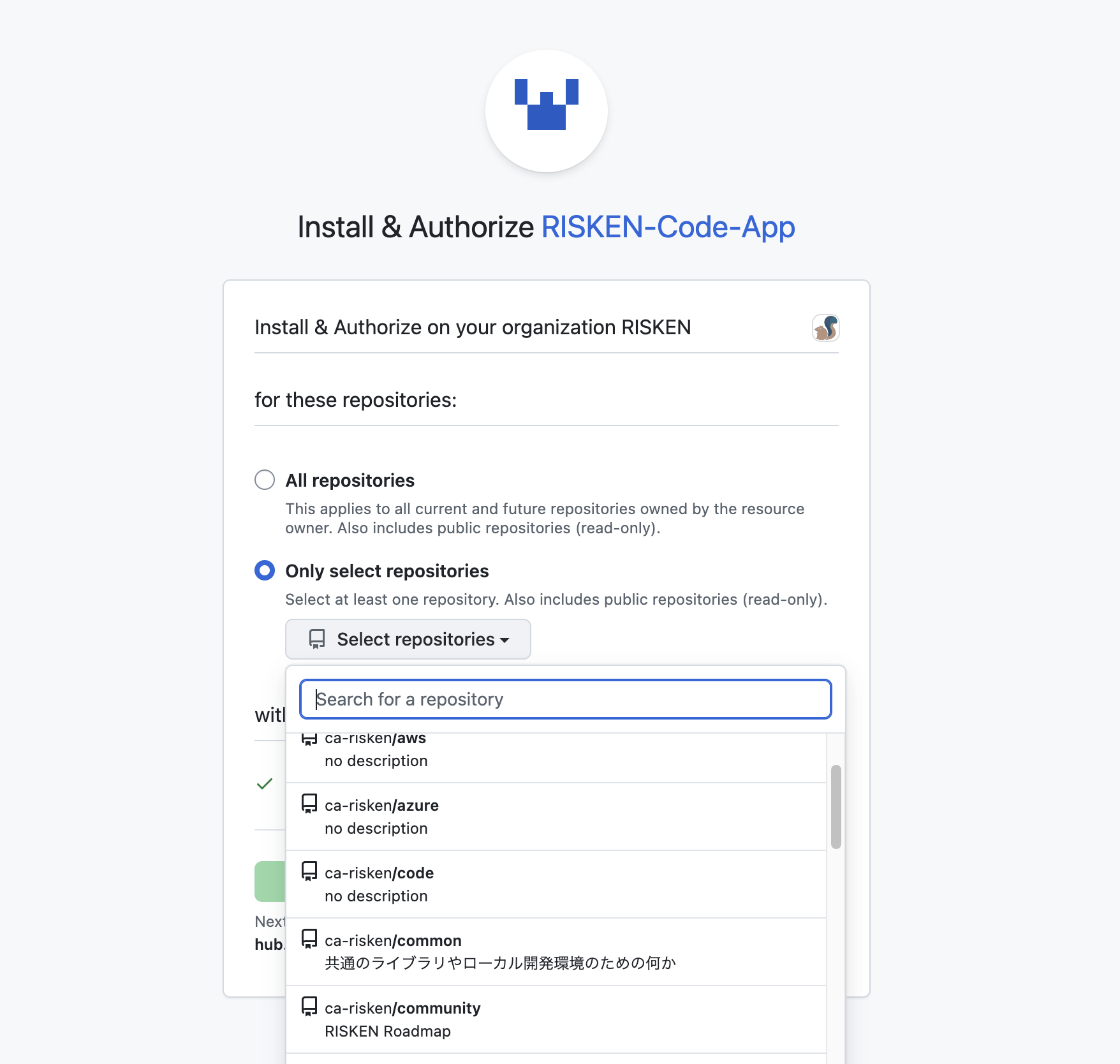
-
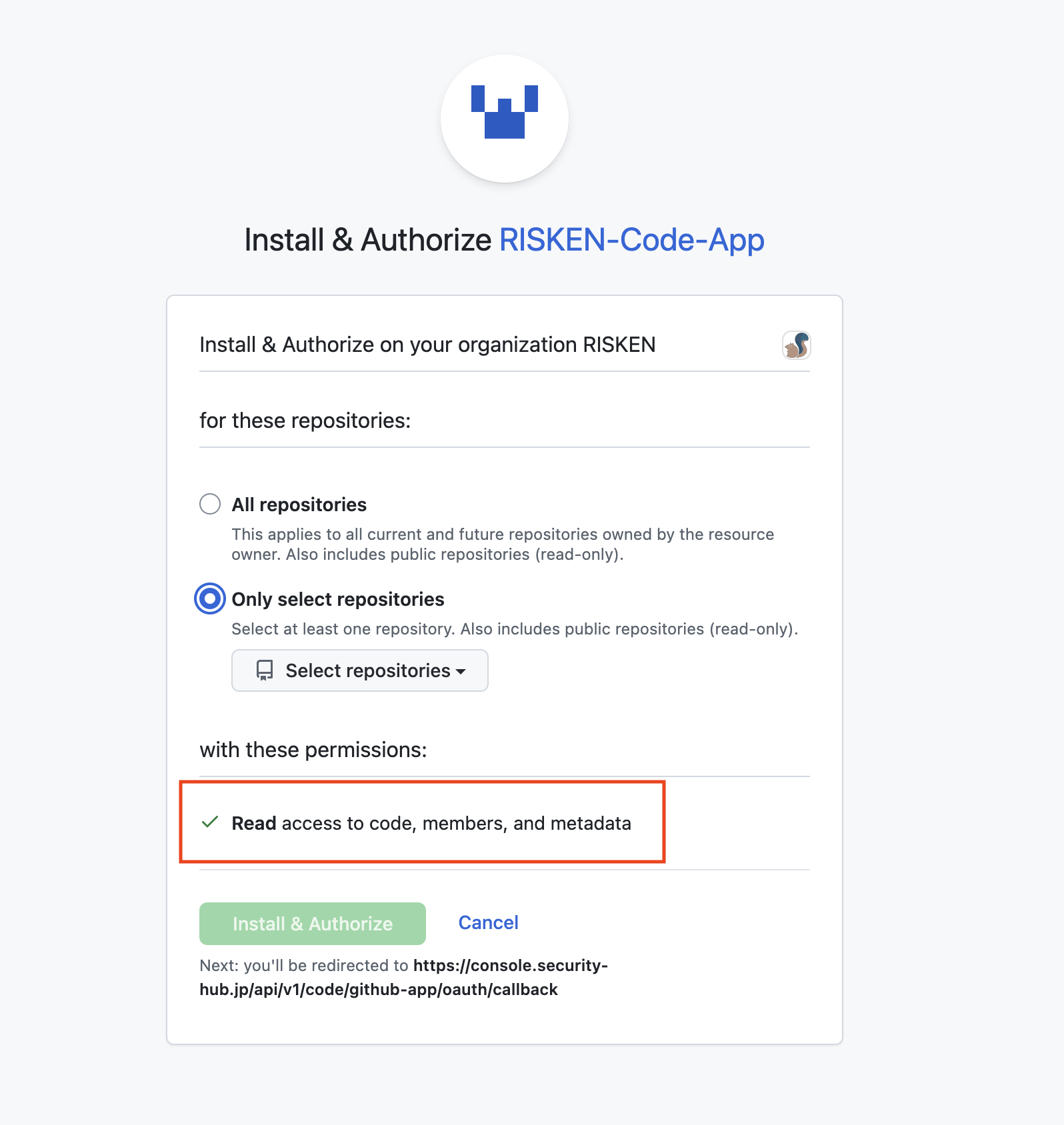
Review the permissions requested by the GitHub App.
Confirm that the permissions are appropriate for reading the repositories to scan.
-
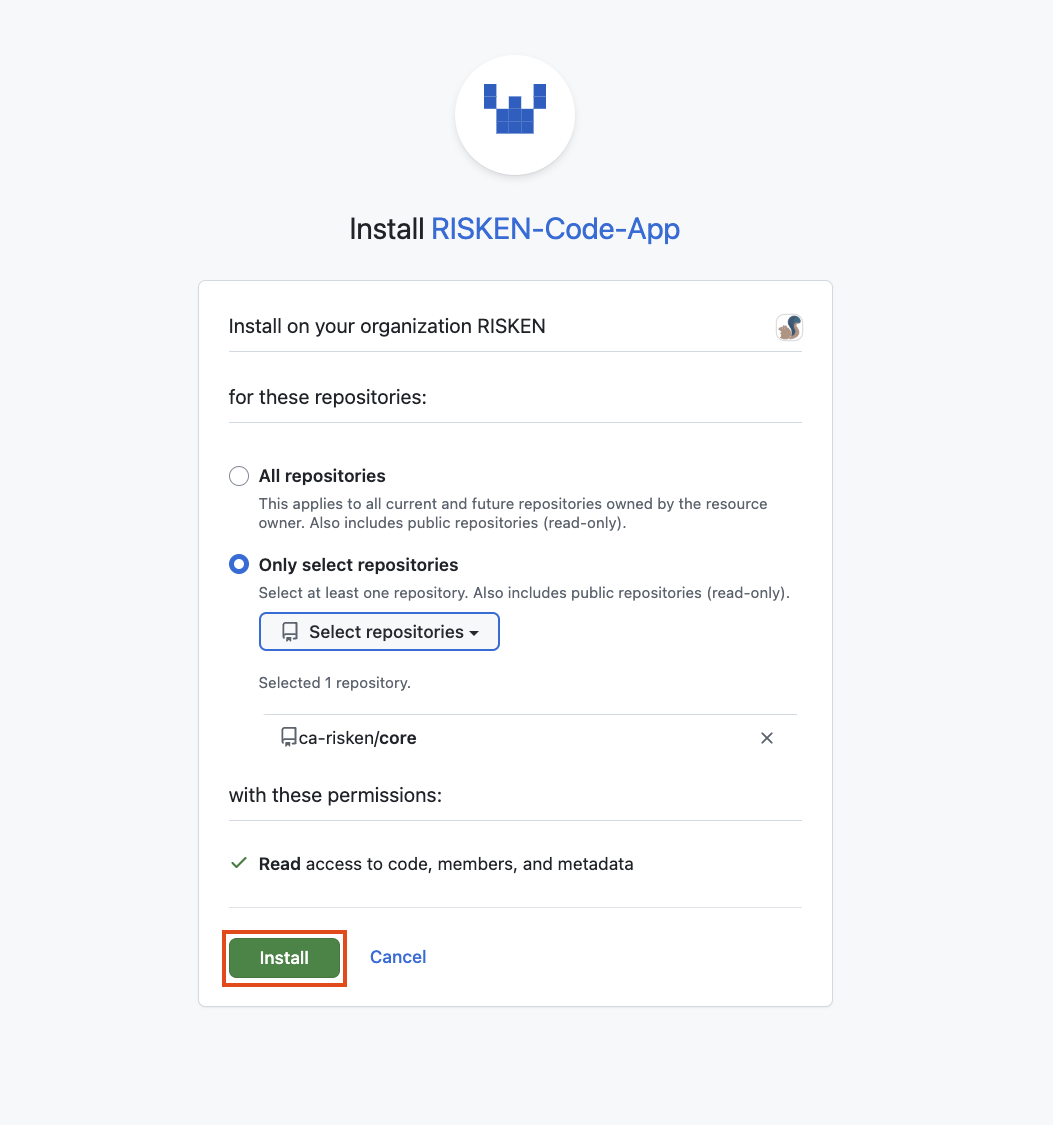
Click
Install.If the GitHub App has already been installed, GitHub may show the repository access update page.
Before completing the installation, review the installation target, Repository access, and permissions, then click the installation button displayed on the screen.
Changing repository access
To add or remove repositories to scan, update the Repository access settings on GitHub.
- Open
Settingsfor the target Organization or User on GitHub. - Open
RISKEN Code AppfromGitHub AppsorInstalled GitHub Apps. - Select
All repositoriesorOnly select repositoriesinRepository access. - If you select
Only select repositories, add or remove the repositories to scan. - Resync the repository list on the RISKEN GitHub setting page.
Troubleshooting
The target Organization is not displayed
The signed-in GitHub user may not be a member of the target Organization. Contact the Organization owner.
The Install button is not displayed, or GitHub shows an installation request
The signed-in GitHub user may not have permission to install GitHub Apps on the target Organization. Ask the Organization owner to install the app.