Configuring scans with the GitHub App
After installing the GitHub App, create a GitHub setting in RISKEN and run GitHub integration.
Configuration steps
-
Create a GitHub setting in RISKEN.
Open
Data Source > Source Code > GitHub, create a GitHub setting, and selectGitHub Appas the authentication mode.Confirm that
TypeandTargetResourcematch the GitHub App installation target, then clickSave.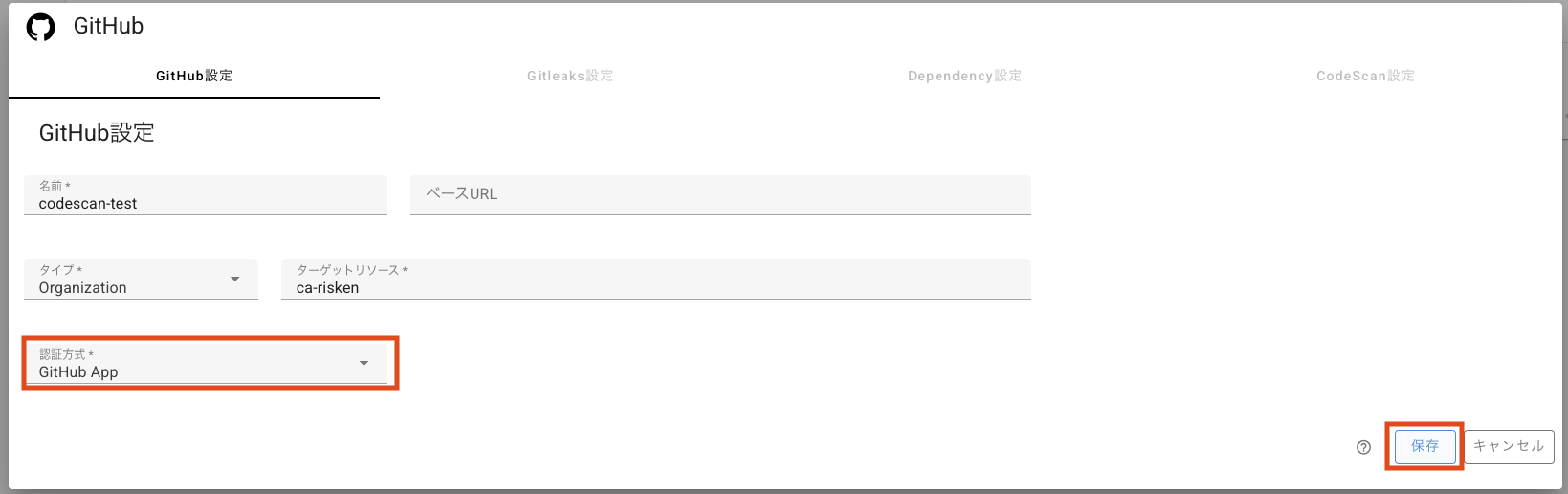
-
Run GitHub integration in RISKEN.
After saving, the GitHub App status changes to
Waiting for GitHub integration. ClickGitHub integrationso RISKEN can verify that the user who created the setting can manage the target repositories on GitHub.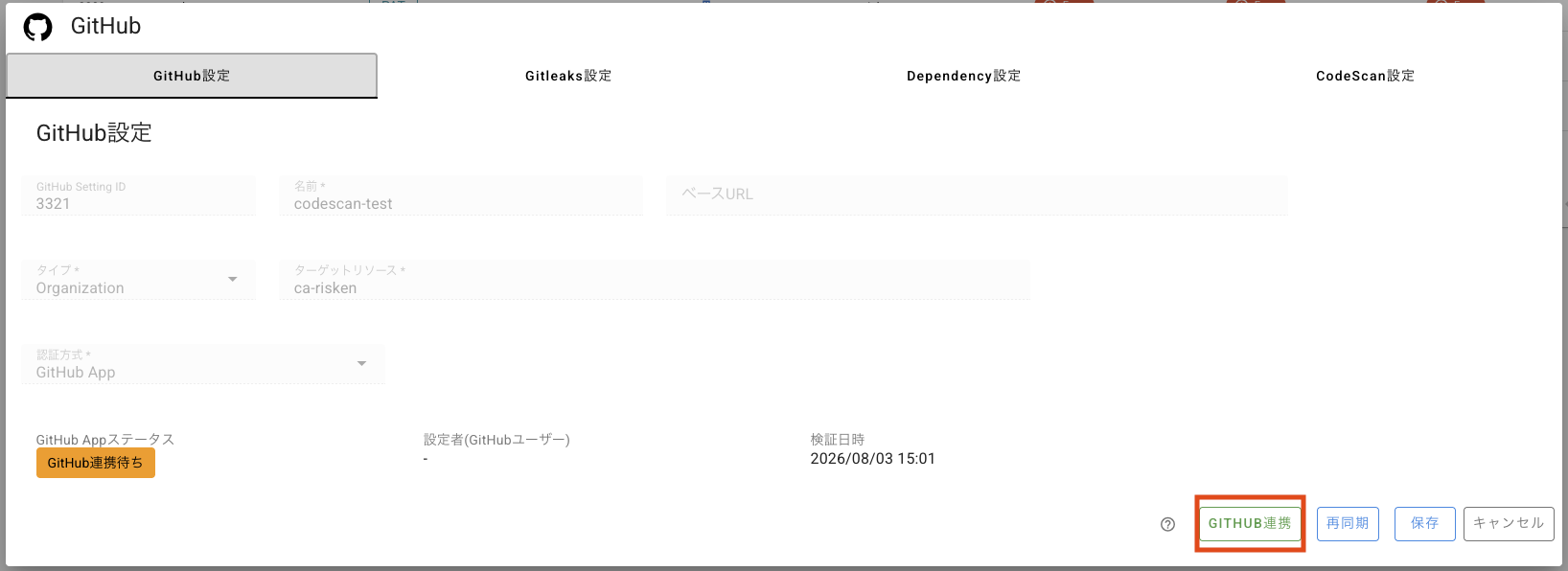
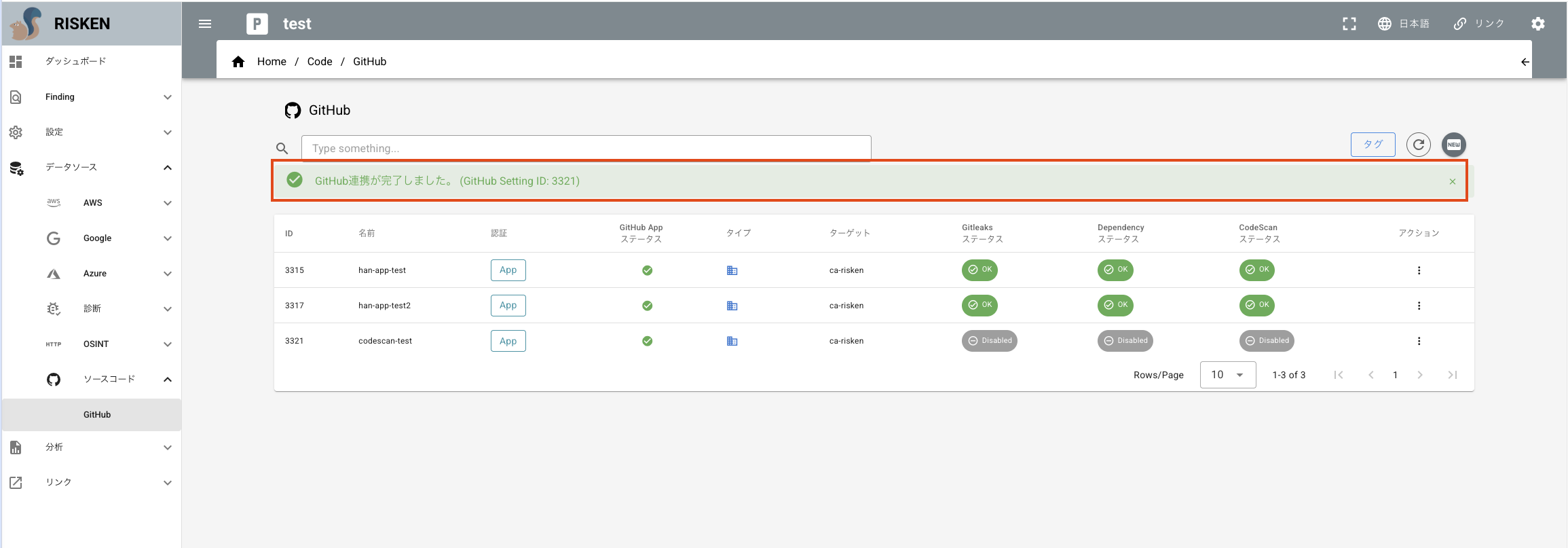
After authentication on GitHub is complete and you return to RISKEN, the GitHub settings list displays a message confirming that GitHub integration is complete.
Troubleshooting
GitHub App verification fails in RISKEN
Check the following:
- The GitHub App is installed on the target Organization or User account.
TypeandTargetResourcein the RISKEN GitHub setting match the GitHub App installation target.- Repository access includes the repositories to scan.
- GitHub App settings in the RISKEN environment, such as Private Key and App ID, are correct.
Target repositories are not displayed
The target repositories may not be included in the GitHub App repository access. Update Repository access on GitHub, then resync the repository list in RISKEN.